
Processes intern
1. Info
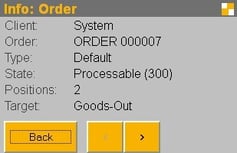
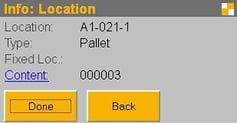
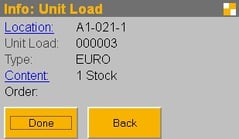
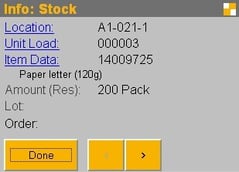
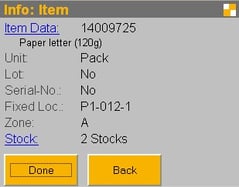
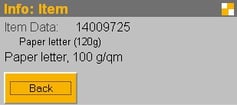
The mobile info dialogs display current information about warehouse inventory. To do this, scan a barcode, and the system will display the relevant information. Based on the input, the system searches for storage locations, loading aids, and items.
2. Replenishment
Replenishment is the transport of goods within the warehouse or facility to ensure that inventory levels at strategically important locations are maintained at optimal quantities. You can place orders for new goods by entering them manually. These orders are then processed via picking orders.
Automatic replenishment ensures that, for appropriately configured storage locations, a replenishment order is automatically generated when stock falls below a minimum quantity.
Configuring Storage Locations
- A fixed location assignment must be created for the storage location.
- The “Target Quantity” attribute for storage location assignment specifies the quantity of the item that should be available in the storage location after replenishment.
- If the quantity of an item falls below 25% of its target quantity, a replenishment order is generated.
Example
Storage location K1-01 is assigned to item A-0001.
The target quantity is 200 units. If the inventory at the storage location is reduced during picking and at any point falls below 50, a replenishment order is generated.
2.1. Mobile Replenishment Request
After logging in to the mobile app, select the “Request Replenishment” menu item.
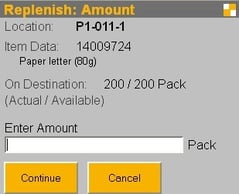
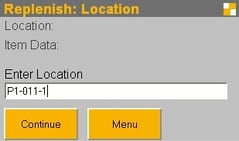
First, you must identify the location for which you want to request replenishment.
The location will then be checked, and the assigned item will be displayed. You now have the option to enter a quantity. If you enter a value, the system will attempt to request the quantity you entered. If you leave the field blank, the system will use the values stored in the master data from the fixed location assignment to determine the quantity. The system will then request the quantity needed to restock the location.
2.2. Request for In-Hospital Replenishment
Selecting the menu item “Actions – Replenish Fixed Locations” instructs the system to check all fixed locations to see if their quantities have fallen below the minimum.
If the quantity falls below the minimum, a replenishment order is generated for the corresponding storage location.
2.3. Replenishment Processing
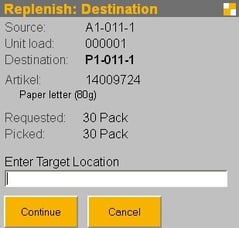
After logging in to the mobile app, select the “Replenishment Processing” menu item.
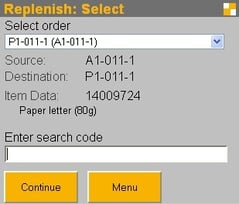
First, you must select the order to be processed. You will then be directed to the storage location from which the material is to be picked. Scan the LHM from which the material is being picked.
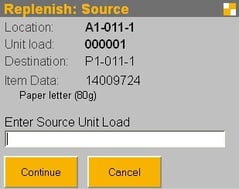
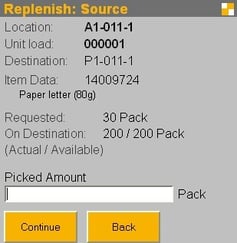
Now remove the material from the source location. You can choose whether to remove the entire LHM or a subset of it. To assist you, the system displays the quantity currently at the destination location, the quantity that can currently be stored at the destination location, and the quantity that has been requested.
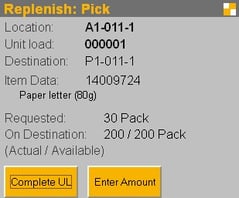
The material is then delivered to the destination location. Confirm this by scanning the destination location.
3. Inventory Counting
The myWMS LOS Inventory module is used to perform inventory counts. In general, inventory counts are storage-location-based. This means that the unit being counted is the storage location. Therefore, a storage location must always be counted in its entirety.
3.1. Types of Inventory
The module supports various types of inventory counts.
Initial Inventory Count: An initial inventory count is used to enter new goods into the system. This is primarily used when implementing a warehouse management system. However, it can also be used to record new inventory that is not received through the normal goods receipt process.
Point-in-Time Inventory: A point-in-time inventory involves a complete audit of all available storage locations as of a specific date.
Continuous Inventory: In a continuous inventory system, all storage locations are counted over the course of a period, and all movements are recorded in a log.
The advantage is that
a) everything does not have to be counted on a specific date, and
b) the count can be performed when it requires minimal effort (counting empty spaces).
3.2. Procedure
The procedure for the various types of inventory counts is very similar.
Creating Count Orders: First, count orders are created for storage locations. Various criteria are available for this purpose. Depending on the type of inventory count currently planned, appropriate criteria—such as clients, areas, locations, items, last count date, etc.—can be entered.
Conducting the Count: The count is conducted using a mobile device. Using a handheld device, the LHM values and inventory levels are recorded directly at the storage locations.
Desktop Post-Processing: If discrepancies were identified during the mobile count, these orders appear in the screen with a corresponding flag. Here, a decision is made as to whether to accept the count as is or to recount the storage location.
3.3 Creating Count Jobs
You can access the dialog box under the menu item “Tools – Inventory – Create Count Orders.”
Count orders are created for storage locations. They can be grouped according to various criteria. To do this, the system searches for storage locations that meet all the specified criteria. If you do not want to use a particular criterion, you can hide it using the radio button.
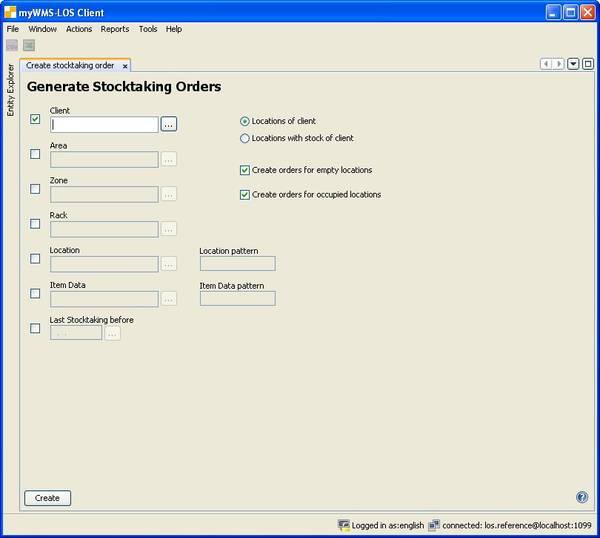
Description of the fields:
Client: Only storage locations assigned to the specified client are used.
Range: Only storage locations within the specified range are used.
Zone: Only storage locations assigned to the specified zone are used.
Shelf: Only storage locations on the specified shelf are used.
Storage Location: Only the specified storage location is used.
Location by Pattern: Here you can specify a pattern for the storage location names based on which the locations will be selected.
The pattern is evaluated using the SQL LIKE operator (e.g., % = any number of characters, ? = one character)
Item: If you specify an item here, count orders are generated for all locations where the item is known to be stored.
Here, too, you can enter a pattern for the item number, similar to the location entry.
Last Inventory Before: Counting orders are generated only for locations that were last counted before the entered date.
Generate orders for empty locations: Use this to specify whether locations that the system recognizes as empty should also be counted.
Generate orders for occupied locations: Use this to specify whether locations that the system recognizes as occupied should also be counted.
3.4. Conducting the Count
The mobile inventory dialogs are used to process count orders.
Only storage locations for which there are open count orders can be counted. Orders are selected manually.
Procedure for the mobile dialogue:
After logging in to the mobile app, select the “Inventory” menu item.
In a multi-client system, you will first be prompted to enter a client.
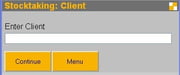
This entry restricts the following process to this specific client. As a result, only the storage locations of the selected client or the system client are available to you. All recorded inventory levels refer to the selected client.
Next, enter the storage location to be counted.
A physical inventory count always refers to an entire storage location. A storage location must be counted in its entirety, in one go. If errors occur during the count, the entire storage location must be recounted during a re-count.
Entering a loading aid in the storage location.
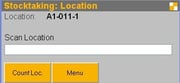
If one or more loading aids are present at the storage location, they are identified here and the process branches to the “Count LHM” function ’ to proceed to the entry of the individual storage units on the loading aids.
The ‘Space Complete’ function completes the count for the space. If no loading aids have been counted in the space yet, the space is marked as empty.
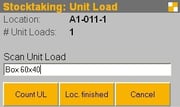
Now enter the quantity of the item on the loading aid.
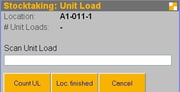
You now have the option to enter another storage unit for mixed LHM entries or to end the count for the current LHM.
Special Procedures:
Entering a new LHM.
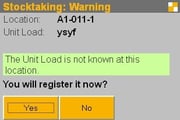
When creating a new LHM, you must first specify the appropriate LHM type.
Entering the item for the storage unit:
The product is identified by its item number or alternative number (EAN code).
Batch and serial numbers are to be entered only for products for which the corresponding flag is set.
Make sure that the entered batches exist. As long as the batches are not correctly recognized and defined in the system, the count order cannot be confirmed later in the desktop dialogs.
3.5. Post-processing
Count orders are processed in a modal dialog.If there are discrepancies, the orders are displayed with the status “Counted”. At this point, a decision is made as to whether to accept the count or to have the location recounted.
As long as the orders have the status “Counted”, the location is locked. The location becomes available again only after confirmation or cancellation.
If a recount is performed, the location of the original count order is set to “Canceled” and a new order is created. By comparing the values of both orders, the changes can be identified.
Special Functions in the Dialog Box:
Recount: New count orders are generated for the storage locations of the selected orders.
Apply Count: The confirmation screen is displayed for the selected orders. All necessary postings are executed.
Remove Count Order: The selected orders are removed. No confirmation is performed. Any locks that may have been set are removed.
4. Stock Transfer
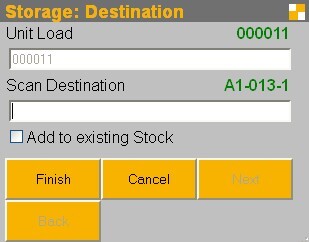
To change the storage location of goods within the warehouse, you can use the “Putaway” mobile dialog.
After scanning an LHM, the system searches for a new storage location based on the current parameters and suggests it to the operator. The suggestion can be confirmed or overridden with a storage location selected manually.
See “Processes in Goods Receiving.”
5. Rebook LHM
Moving a loading aid to a different storage location.
You can access the dialog under the menu item “Actions – Move Loading Aid”.
The wizard allows you to move a loading aid to a different storage location. It is used, for example, to “tidy up” the warehouse.
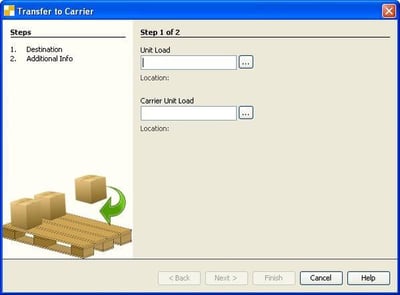
Explanation of the terms used in the dialog box:
Loading aid: Enter the loading aid to be transferred.
Destination location: The location to which the loading aid is being transferred.
Ignore Storage Bin Lock: The lock on the storage bin—for example, due to a batch validity—is ignored.
Delete Reservation: The reservation for the loading aid—for example, due to a placed purchase order—is canceled.
6. Transfer the LHM carrier
Transferring a loading aid to a carrier loading aid.
You can access the dialog box under the menu item “Actions—Transfer to Carrier”.
The wizard allows you to transfer a loading aid to a carrier loading aid.
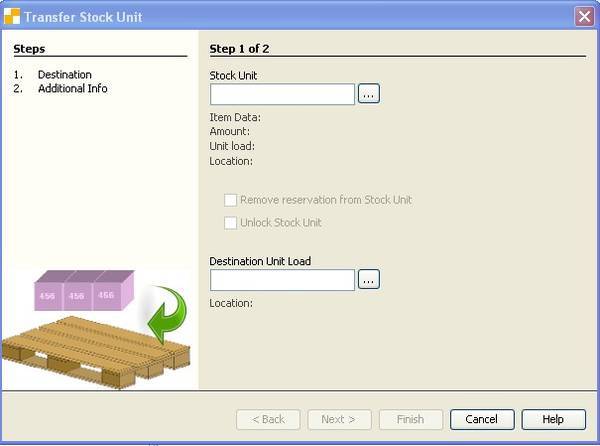
Field Descriptions:
LHM: The LHM to be transferred.
Receiving LHM: The receiving LHM to which the LHM is to be transferred.
7. Transfer a storage unit
Transferring a storage unit from one LHM to another LHM.
You can access the dialog under the menu item “Actions – Transfer Storage Unit”.
The wizard allows you to transfer a storage unit from one LHM to another. This may be necessary for repackaging or for storing and consolidating items in the warehouse.
If you want to assign an entire LHM to a different storage location, please use the “Transfer LHM” dialog.
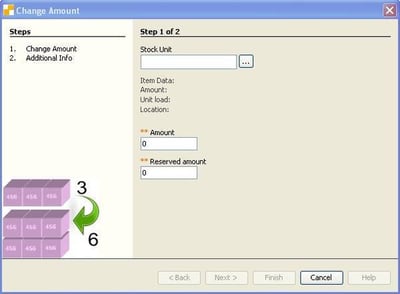
Field Descriptions:
Storage Unit: Enter the storage unit to be transferred.
Delete Storage Unit Reservation: The reservation for the storage unit—for example, due to a canceled purchase order—is canceled.
Destination LHM: The loading aid onto which the storage unit is repacked and posted.
8. Change the quantity
To change the quantity of an item, you can use this dialog box.
You can find it under “Actions – Change Quantity”.
A dialog box will open that allows you to reconcile any discrepancy between the quantity of goods stored in the system and the actual quantity of goods.
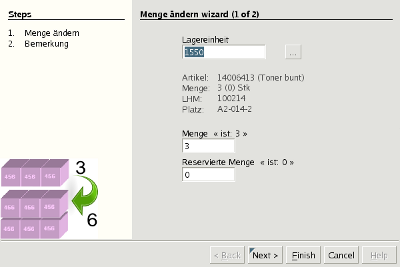
Field Descriptions:
Storage Unit: Select the storage unit to be checked.
Quantity: Enter the actual quantity of the storage unit on hand.
Reserved Quantity: After selecting the storage unit, the system automatically displays the quantity reserved for that storage unit.
9. Lock and Unlock a Batch
The menu option “Actions – Lock/Unlock Batches” instructs the system to check all batches to determine whether the best-by date (valid until date) has been exceeded or the valid-from date has been reached.
Batches whose “Valid Until” date has been reached or exceeded are locked with the lock indicator “Batch Expired” (202).
Batches that were previously locked with the lock indicator “Batch Not Yet Valid” (203) but whose “Valid From” date has now been reached are unlocked.